The viewer in use
Every image below is the real product against a test-signed PDF — including one that was altered after signing, so the failure case is shown rather than described.
The verdict, and the evidence behind it
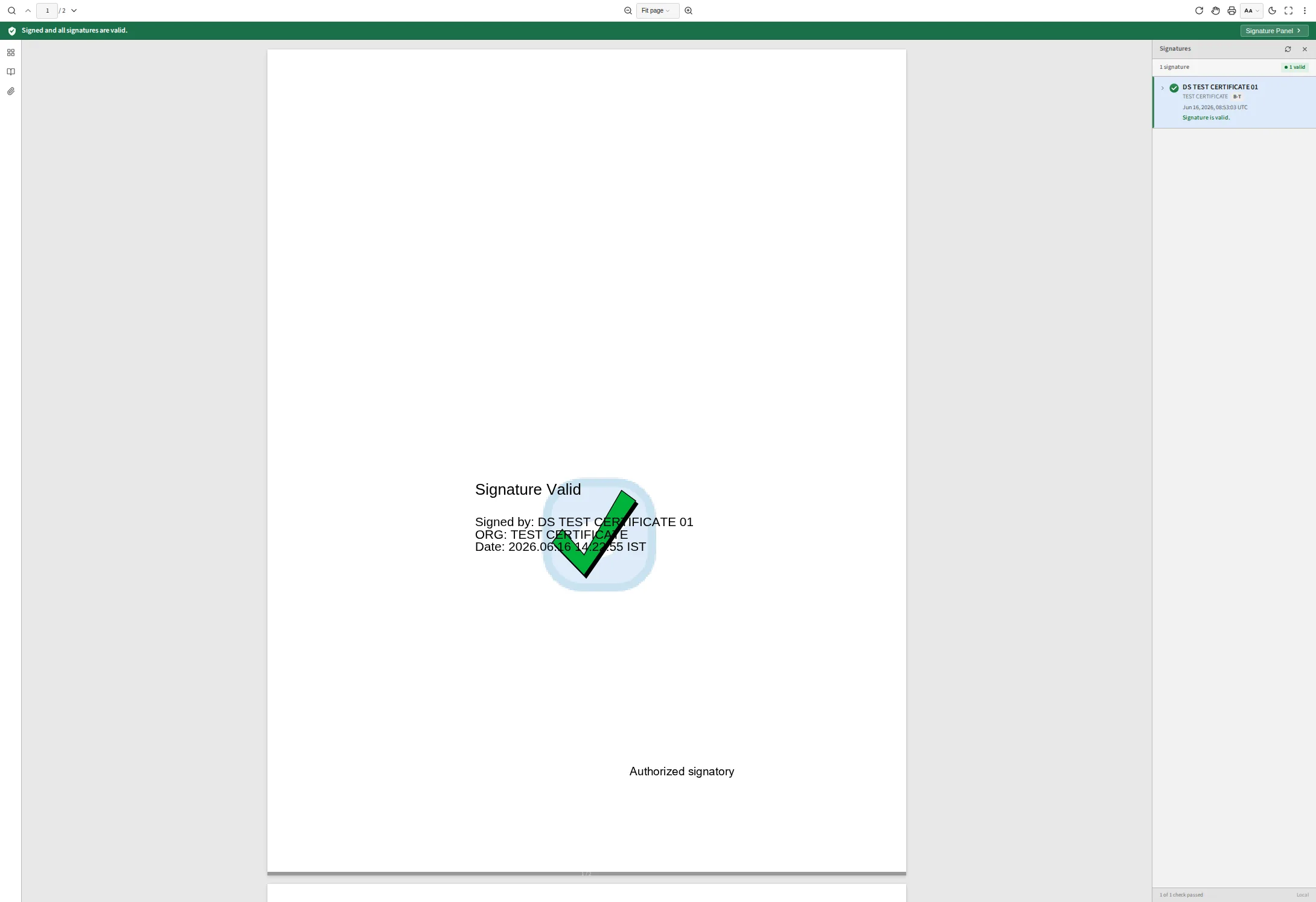
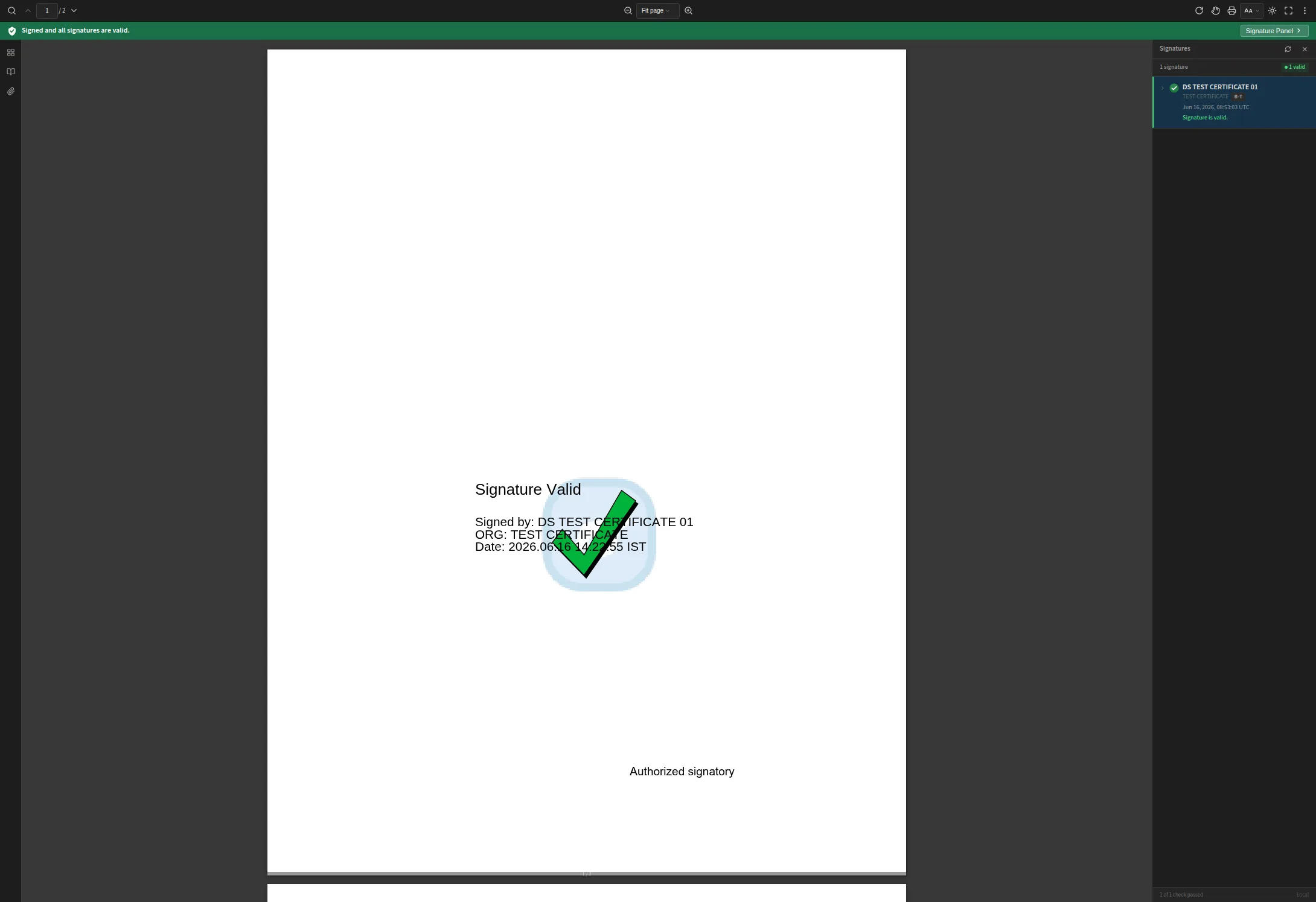
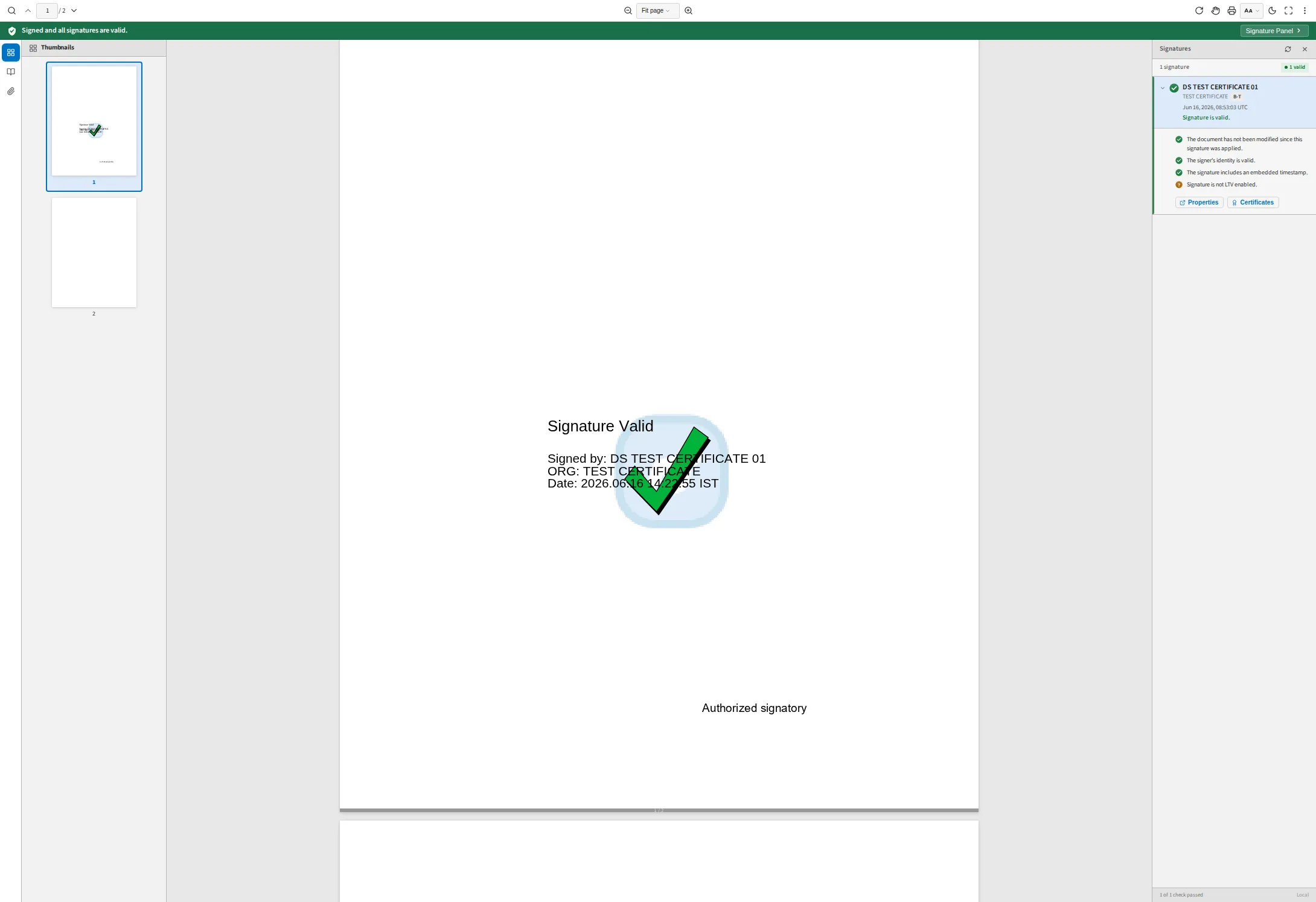
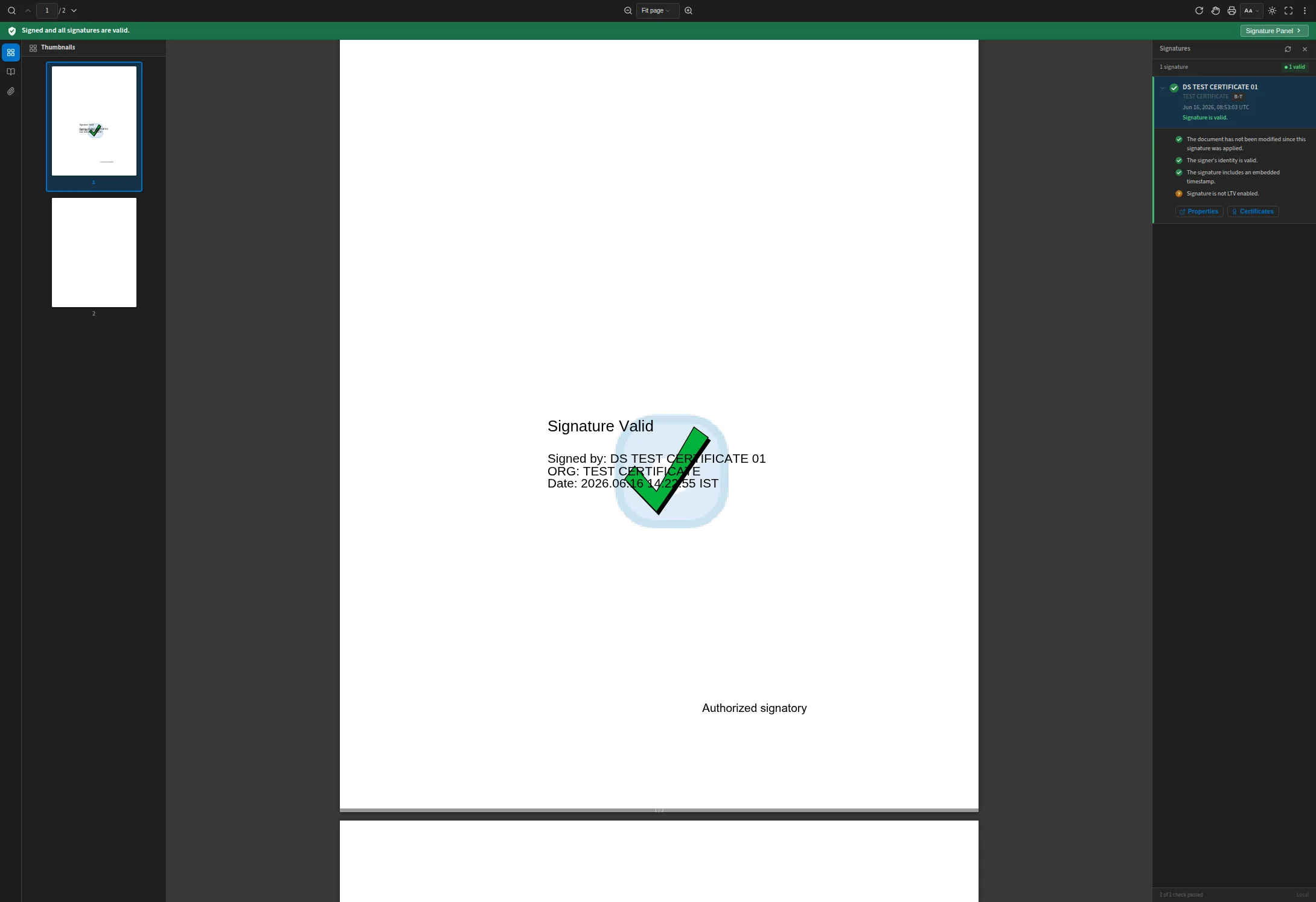
An Adobe-style bar across the top states the document’s standing in the wording the people who review these documents already recognise. The panel on the right lists every signature the file holds — the signer’s certificate, the organisation behind it, the PAdES conformance level reached, when it was applied, and a one-line verdict.
The verdict is a summary, not the whole answer. A document can be signed and valid, signed and altered, or signed by a certificate that no longer chains to a trusted root, and those are different situations with different remedies. Selecting a signature opens its properties, where the eight checks behind the verdict are reported one by one.
Eight checks, reported separately
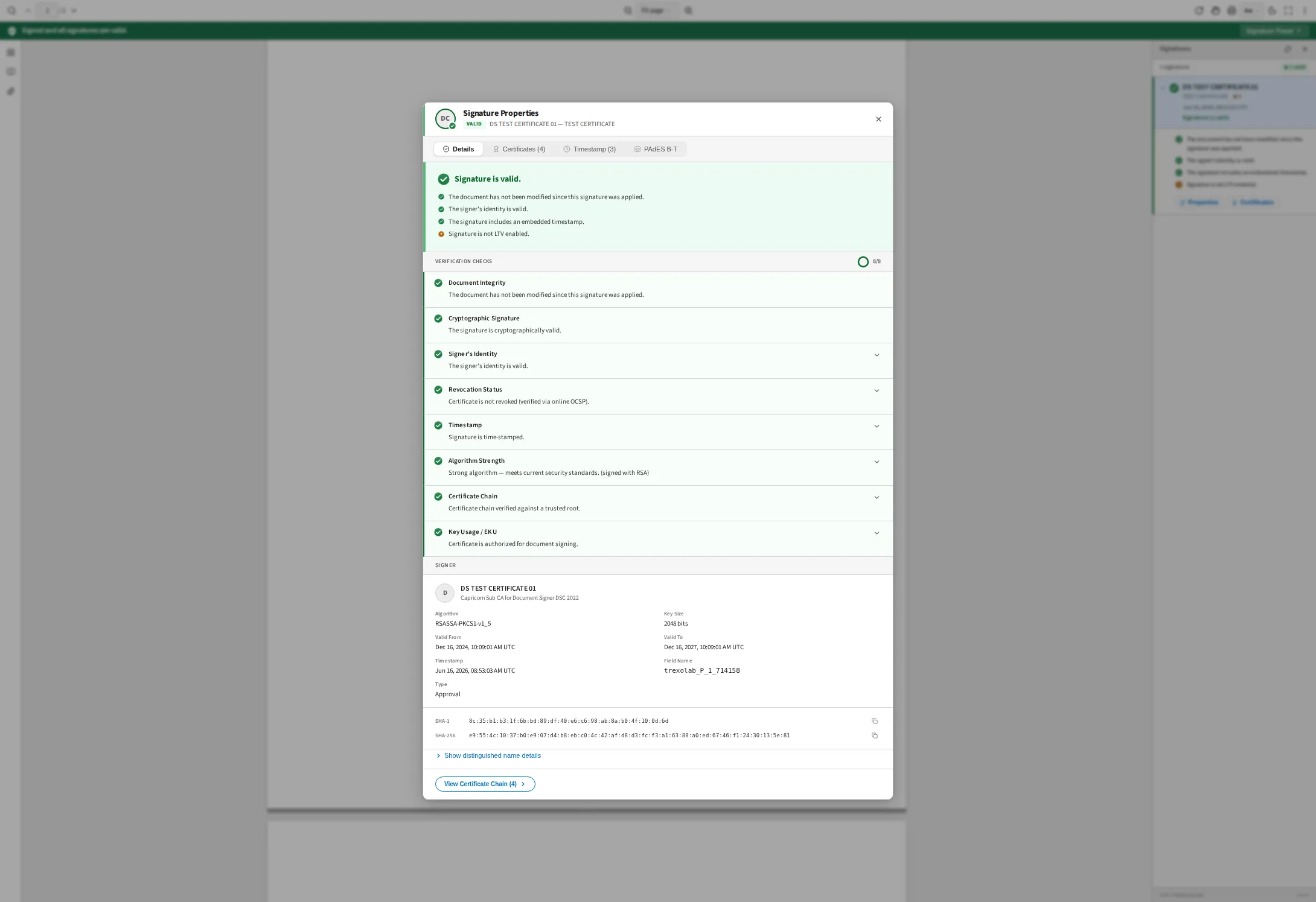
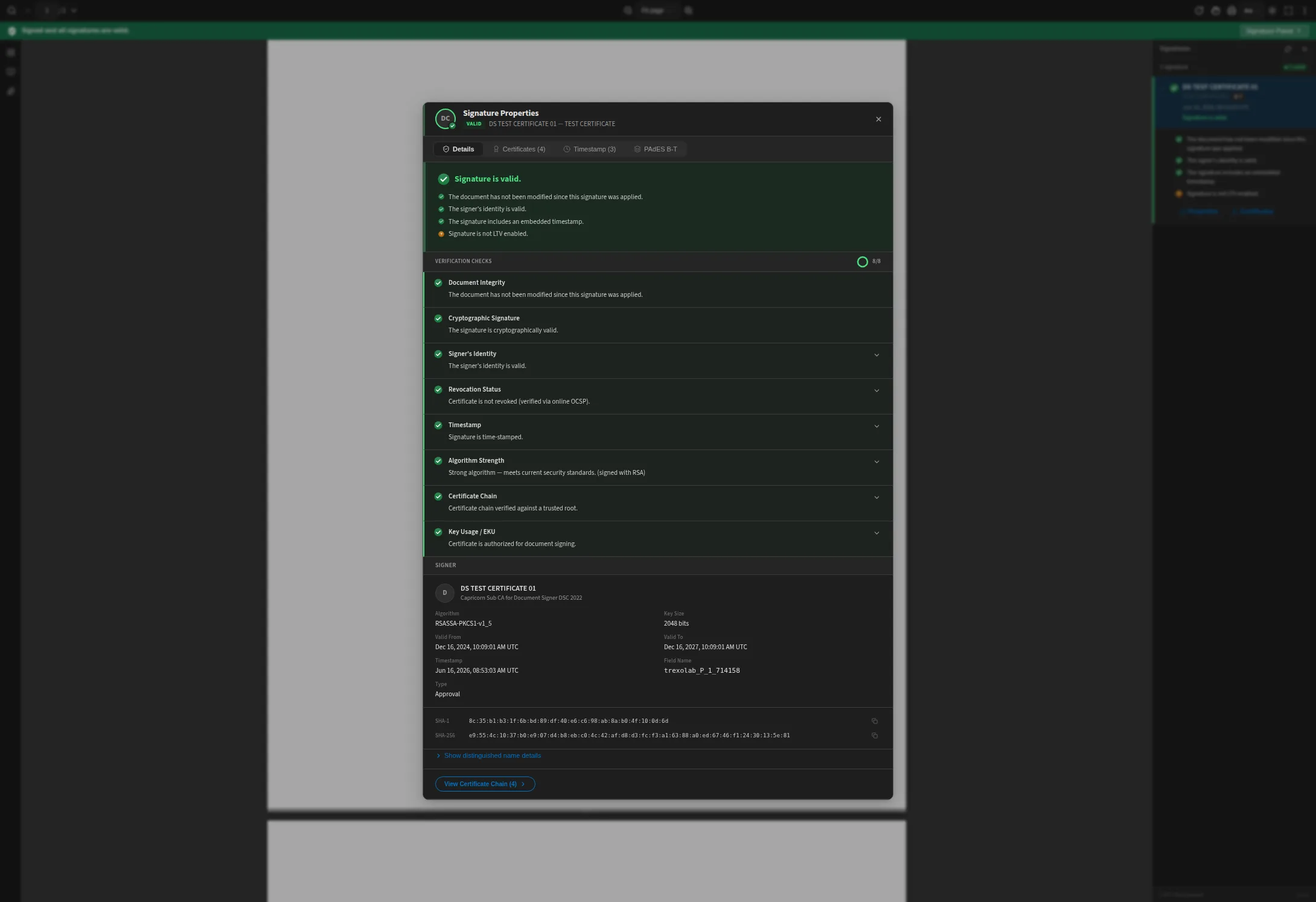
Most JavaScript PDF libraries answer signature verification with a single boolean. VerifyKit reports eight checks separately — document integrity, cryptographic signature, signer’s identity, revocation status, timestamp, algorithm strength, certificate chain and key usage — each with its own status and its own sentence explaining it.
The checks fail independently and mean different things. A document whose bytes changed after signing fails integrity while its cryptography stays sound. A certificate that expired after it signed still produced a valid signature at the time. Collapsing those into one flag throws away what a reviewer needs to decide what actually happened.
The summary above the list is equally careful: this signature is valid and time-stamped, and the same panel says plainly that it is not LTV enabled. Notice too that the dialog reports 8/8 while still telling you something the document does not have.
The chain to a trusted root
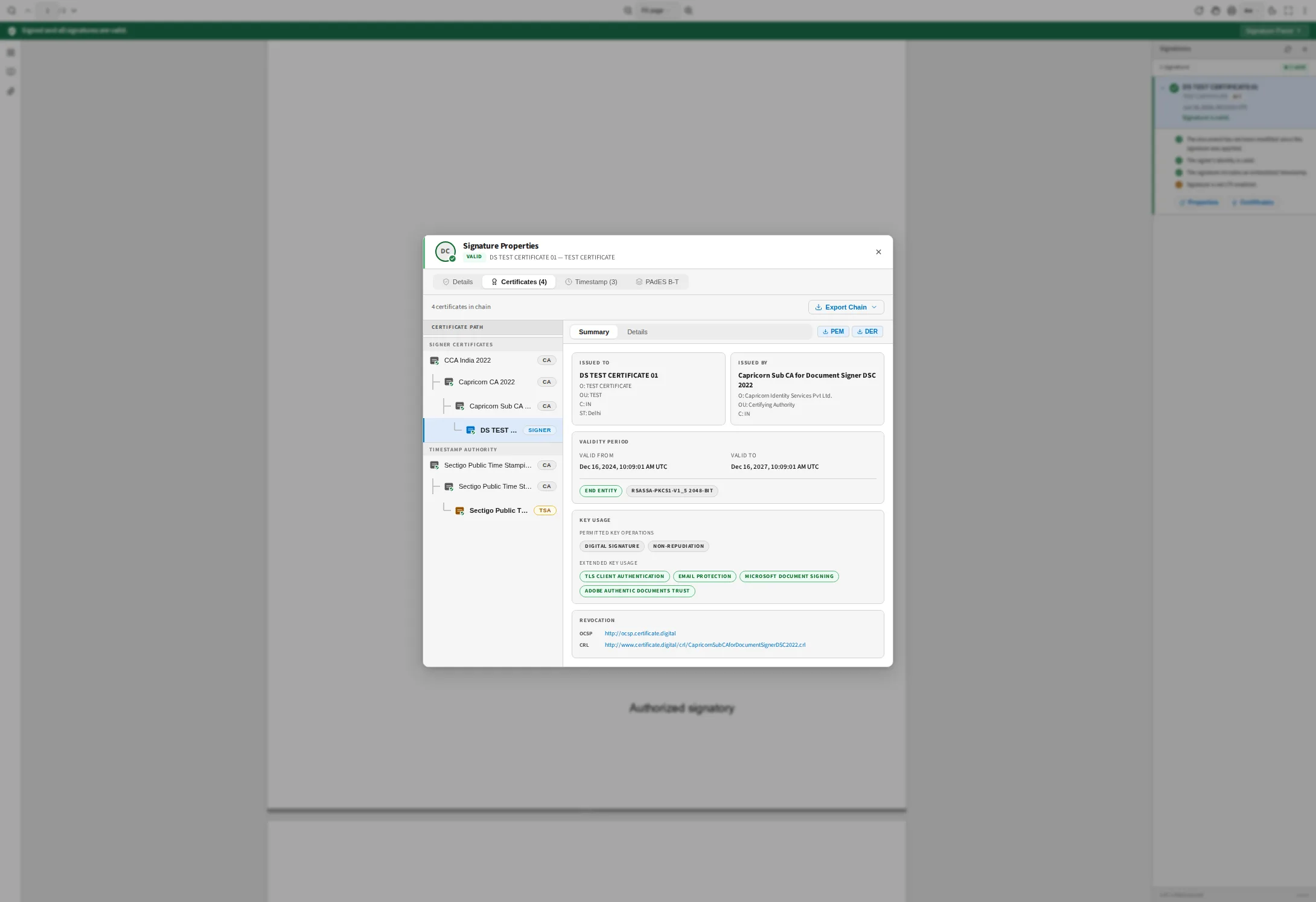
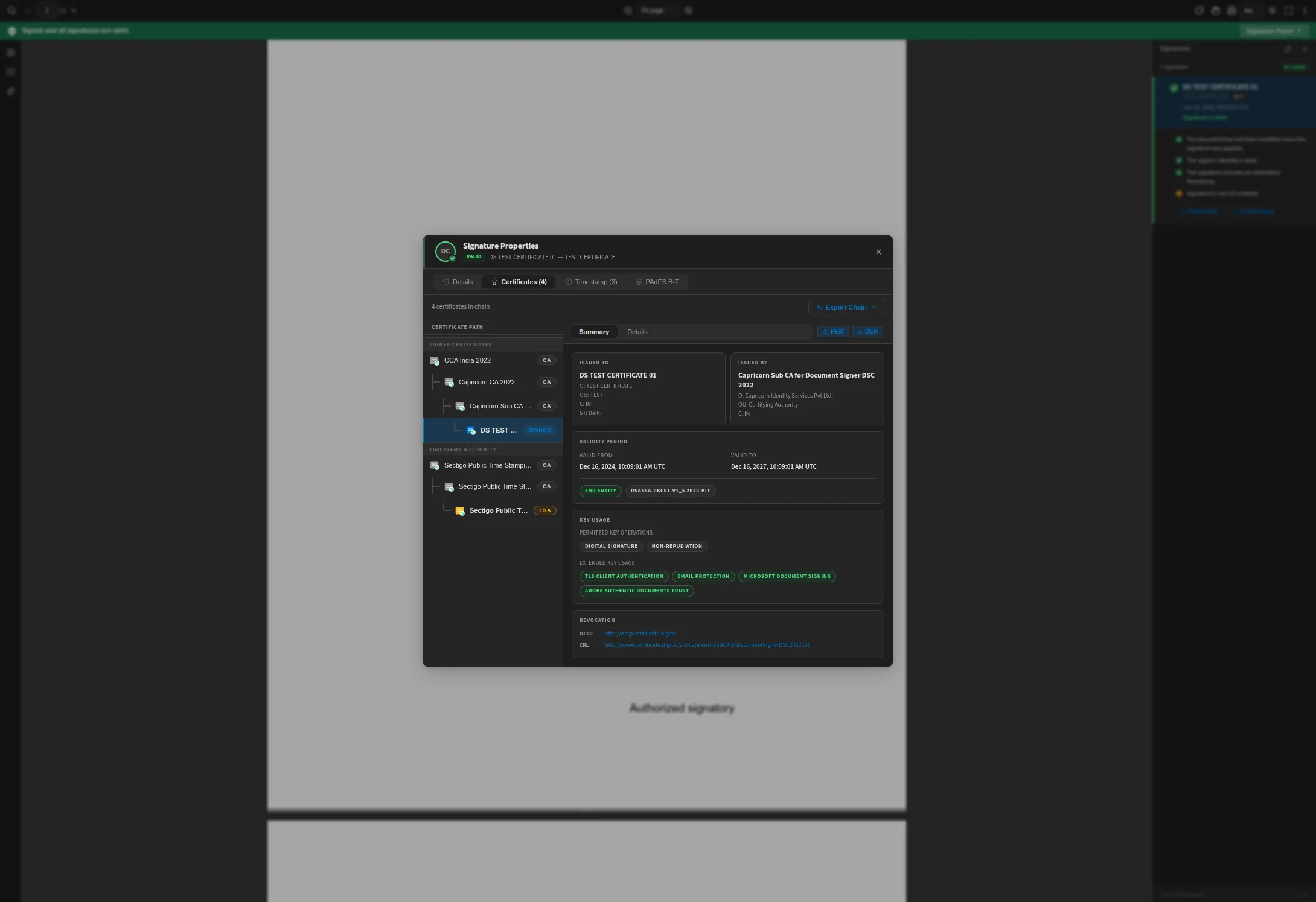
A signature is only as good as the chain behind it. This view shows every certificate between the signer and the root that vouches for them — here four of them, from CCA India 2022 down to the signing certificate — and it does the same for the timestamp authority, which has a chain of its own that is easy to forget about.
For each certificate it shows what a compliance reviewer asks for: who it was issued to and by, the validity period, the key usage and extended key usage it permits, and the OCSP and CRL endpoints used to check whether it has been revoked. These are the fields that decide whether a signature satisfies eIDAS or the ESIGN Act.
And when the document does not hold up
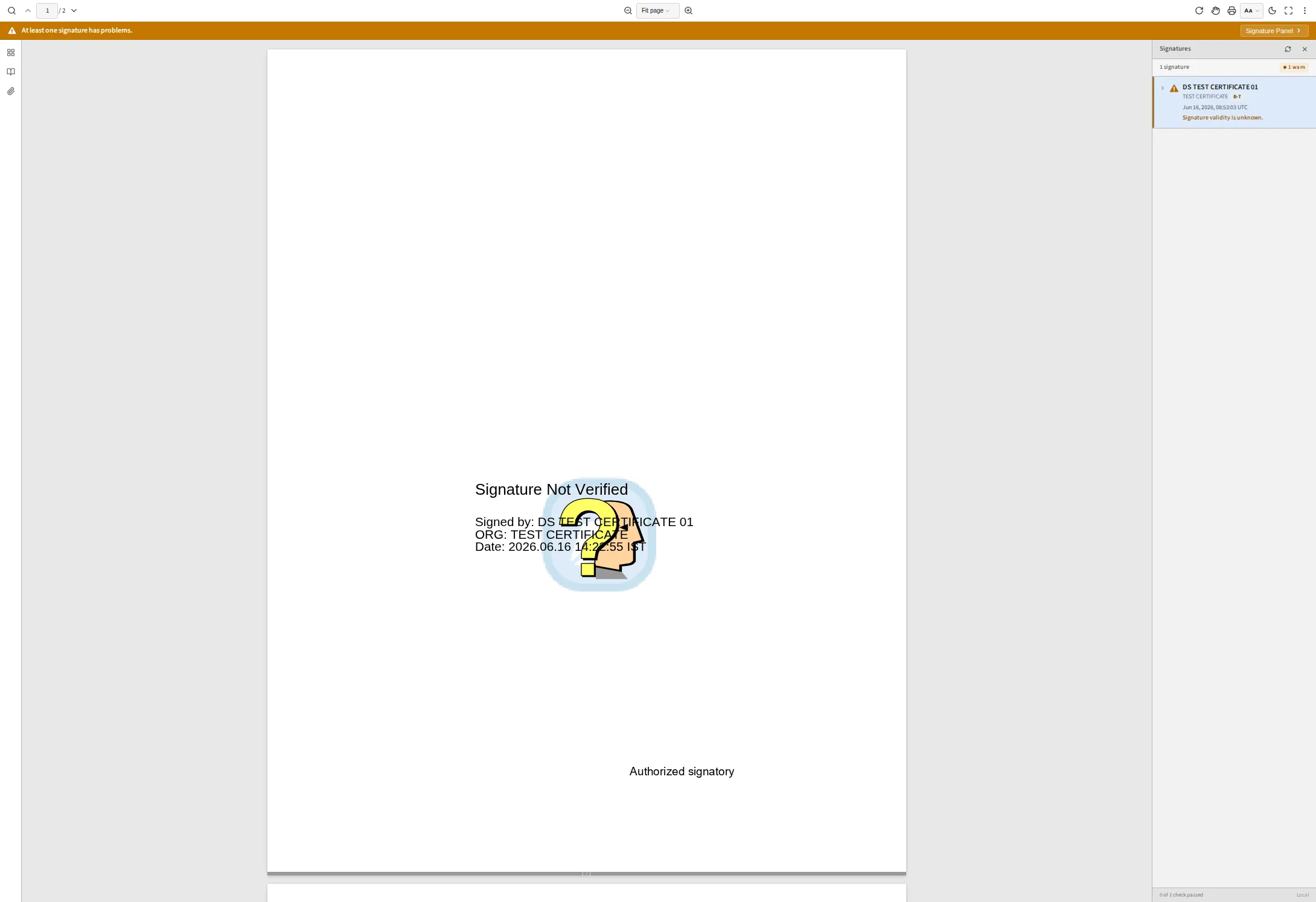
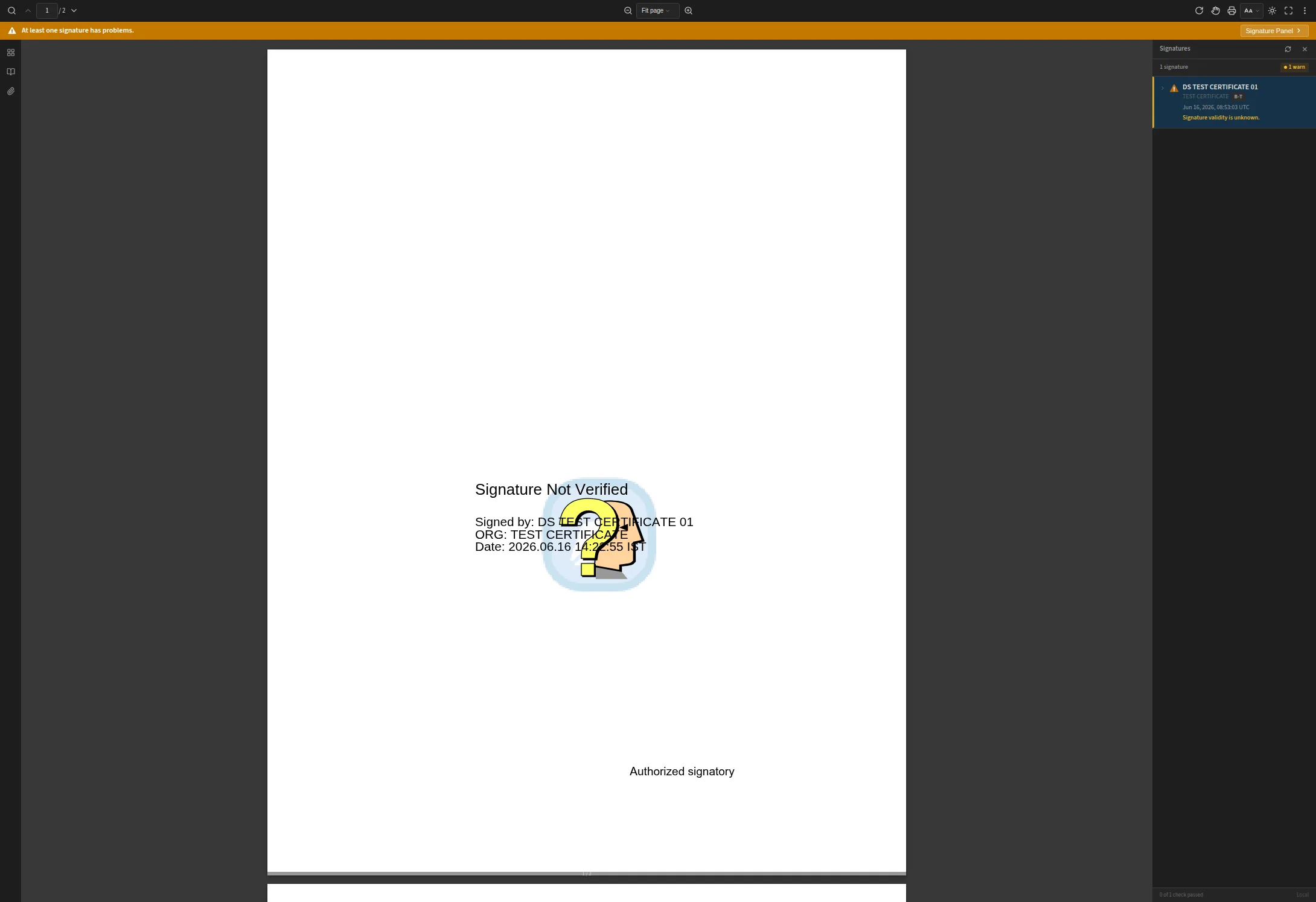
This document was altered after signing. The bar turns amber and says at least one signature has problems, the panel counts the signature under “1 warn” rather than “1 valid”, and the stamp drawn inside the page changes to “Signature Not Verified”.
The wording is careful on purpose. The signature is still cryptographically sound — the bytes it covered still hash correctly — but content was appended afterwards that it does not cover. That is not a forged signature, and reporting it as a flat failure would mislead as badly as reporting it as a pass. Amber, not red: red is reserved for a signature that genuinely does not verify.
The stamp changing is a safety property rather than decoration. The appearance baked into a PDF at signing time says whatever the signer’s tool drew and keeps saying it no matter what happens to the file. VerifyKit replaces it from its own verification result, so a baked-in “Signature Valid” graphic can never imply a validity the engine did not establish.
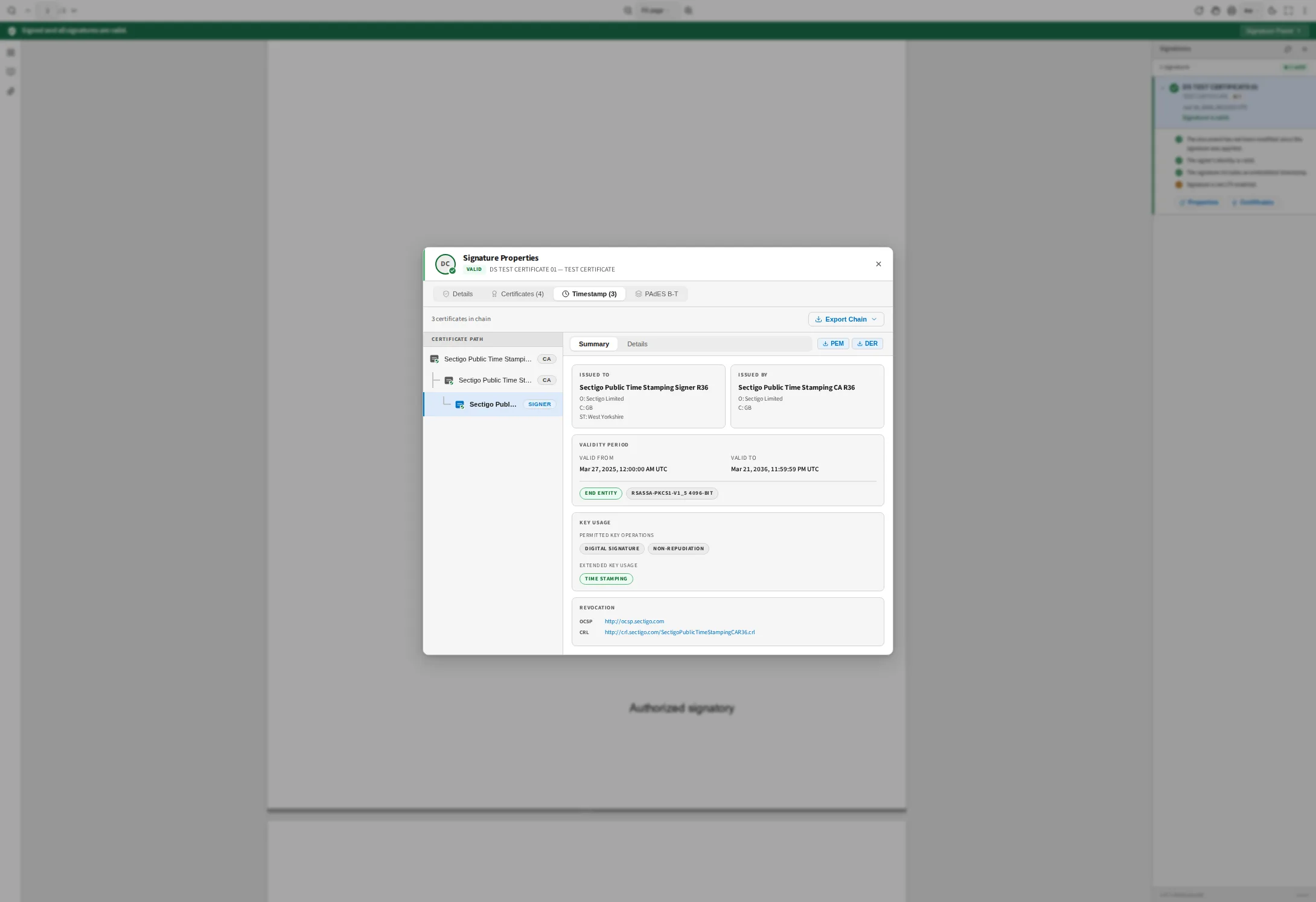
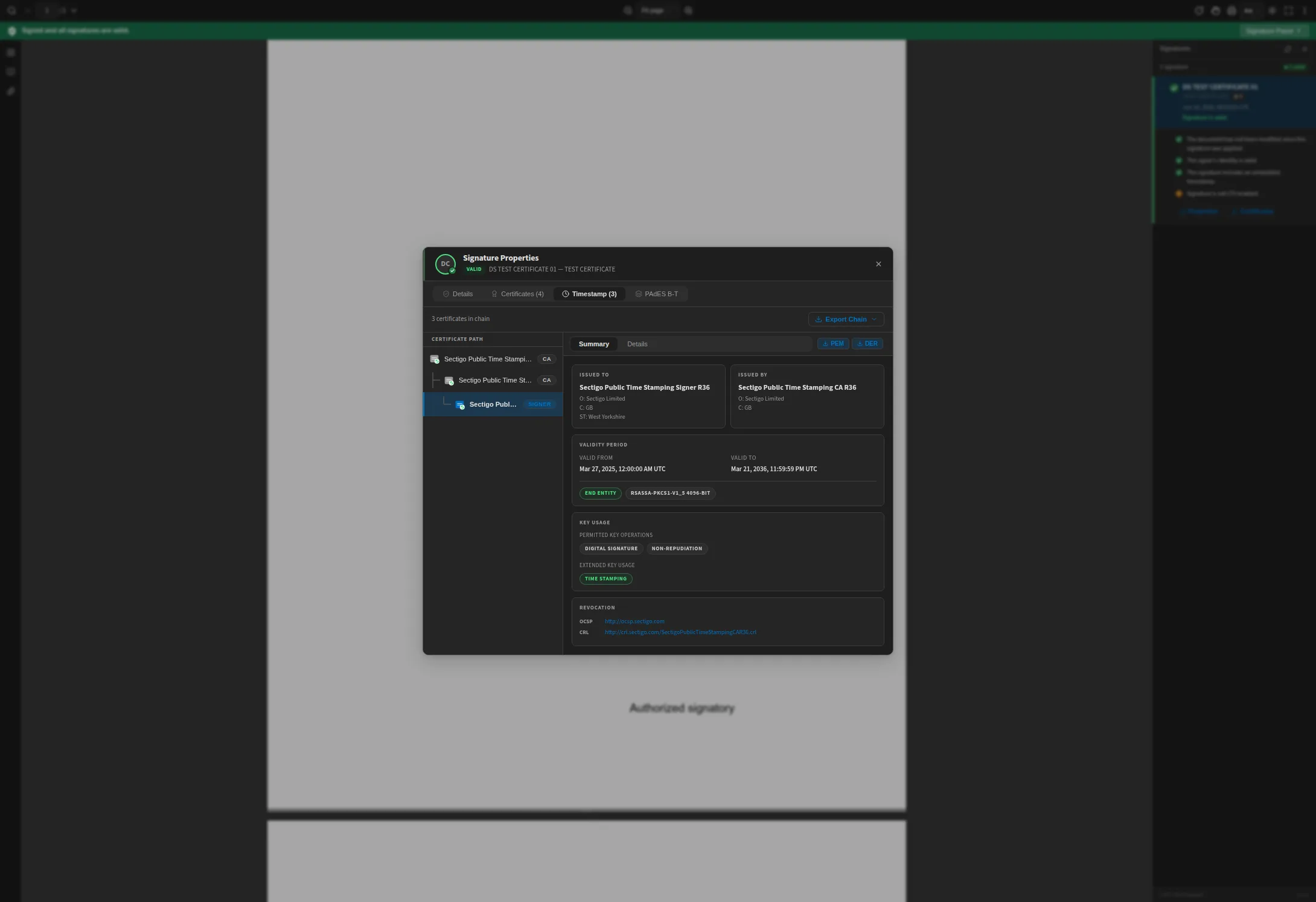
The timestamp has a chain of its own
A trusted timestamp is what raises a signature from PAdES B-B to B-T, and it is issued by a different authority from the one that issued the signing certificate. So it gets its own tab, its own chain, and the same scrutiny: issuer, validity period, key usage, and revocation endpoints.
The extended key usage here reads Time Stamping, which is the check that matters — a certificate not authorised for time-stamping cannot produce a token you should rely on. The validity running to 2036 is what makes long-term archival verification possible after the signing certificate itself has expired.
A viewer, not a widget
Verification is what the product is for, but a reader still has to read the document. The thumbnail rail is open here beside the page; search, attachments and printing sit in the same chrome.
This matters for integration. A verification widget bolted onto a separate PDF viewer means two components that disagree about page state, zoom and scroll position, and a signature panel that cannot point at the region it describes. Here they are one component, so selecting a signature can take the reader to it.
Try it against your own signed PDF — the live demo runs entirely in your browser and uploads nothing.